
Partner Knowledge Base
View SIM information
What role/s can do this? All partner roles.
For each SIM, you can view general information as well as usage data, SIM status, associated customer information and Call Detail Records (CDRs).
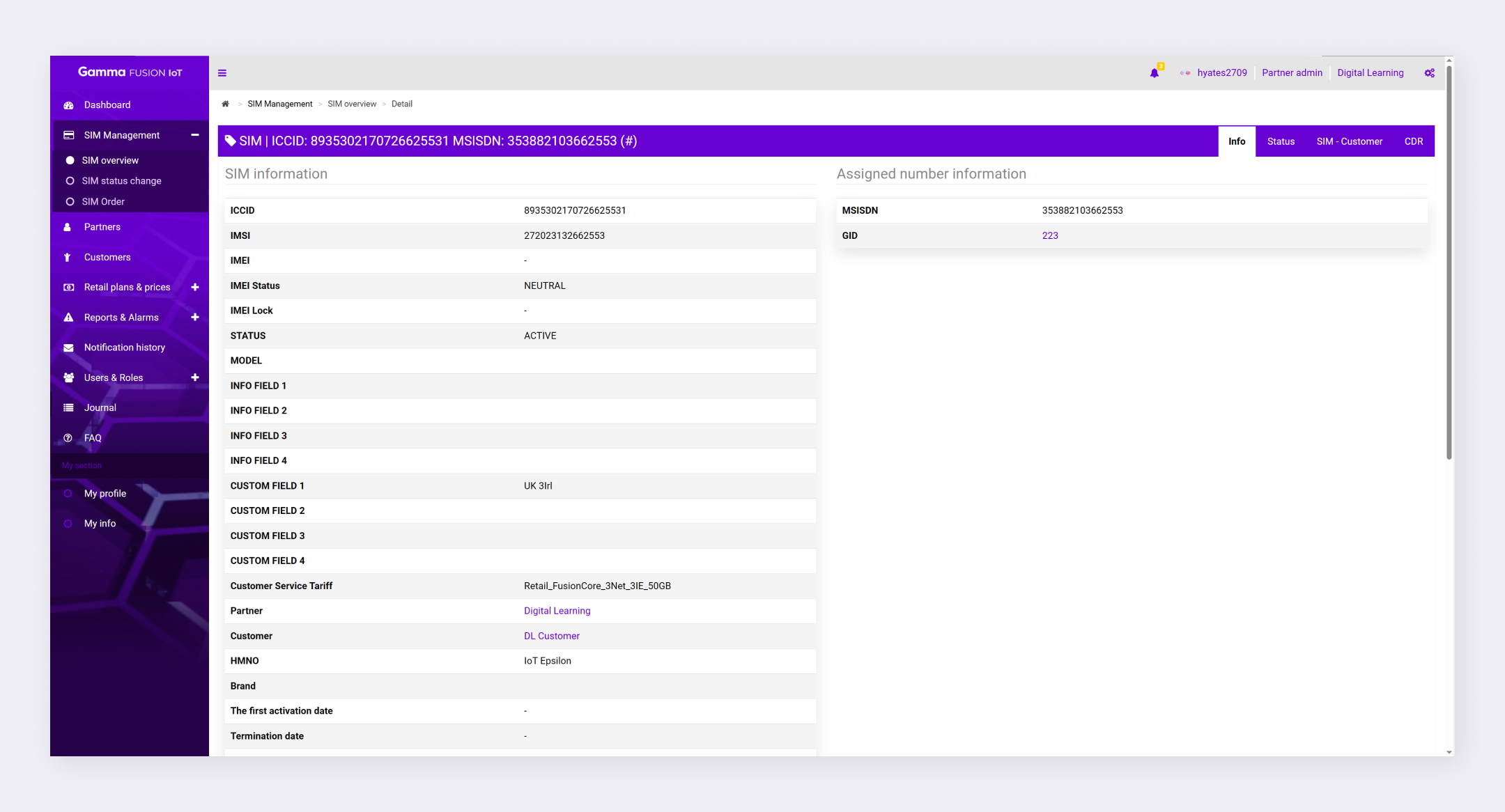
View SIM Information #
You can use filters to make it easier to view specific SIMs. See Filter SIMs.
- Navigate to SIM overview
- Locate the relevant SIM card
- Click Detail in the Actions column
The portal displays the SIM information.
| Note: To view customer specific SIMs navigate to the relevant customer and select the SIMs tab. See View Customer SIMs. |
Additional Details #
There are 4 tabs to look at when viewing SIM information:
| Tab | Description |
|---|---|
| Info | This page will show information about the SIM such as the IMEI details, SIM status and the assigned number information. The page will also display usage graphs to view how the SIM is being used. |
| Status | This page will provide additional information about the status of the SIM. The information will vary depending on the SIM operator. See SIM status tab. |
| SIM – Customer | This page displays customer information associated to the SIM. When you view specific customers in the Customer area, you can view SIM information and additional information such as Services, CDRs, and Users. |
| CDRs | This page will list the Call Detail Records (CDRs) which can be exported for analysis. See Export SIM CDRs. |
| Note: For help with the terminology in the SIM overview area please refer to SIM overview Terms. |